The Lights Go Out, the Wi-Fi Stays On: A Practical UPS Plan for Broadband Kit
UK power cuts tend to arrive at the worst moment. A storm takes out a line, a substation trips, or the builder next door fires up something enormous and the lights blink. Most of us can handle a dark kettle for half an hour. What we notice is the broadband going down, the Wi-Fi disappearing and the VoIP phone going silent. That is the gap a UPS is meant to fill — not to run the whole house, but to keep the important network bits alive until the power comes back.
Start with a shortlist, not a shopping list
The first mistake is trying to protect everything. A UPS is not a magic wall socket. It has a battery, a limited amount of energy and a realistic runtime curve. The trick is to decide what genuinely needs to stay up.
For most homes and small offices, the shortlist looks like this:
- The ONT or modem — the box where the fibre or broadband line arrives.
- The router or firewall.
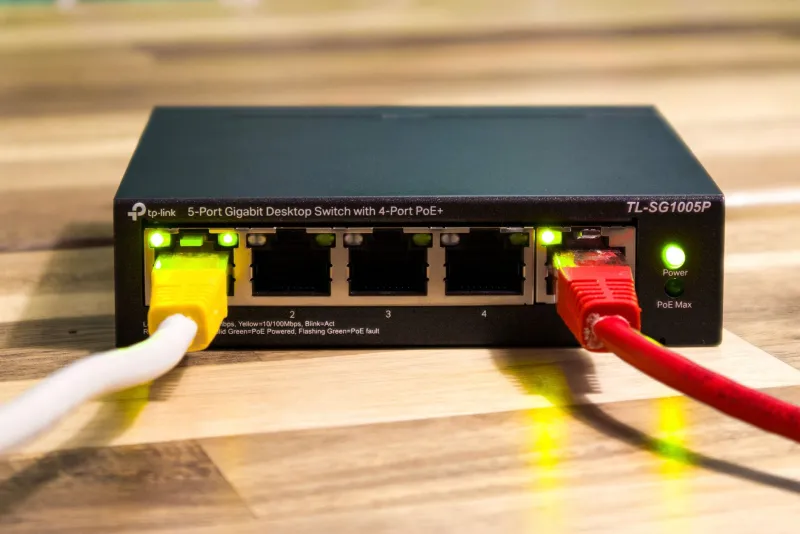
- The main network switch.
- One or two key Wi-Fi access points, not every access point in the building.
- A VoIP adapter or desk phone if calls matter.
Everything else can wait. Printers, NAS boxes, smart speakers, media servers and desktop PCs are nice to have, but they are not usually the difference between being online and being offline. PoE cameras are a judgement call: useful during a power cut, but they can drain a small UPS quickly.
The arithmetic is simpler than the spec sheet
UPS boxes shout about VA, but the number that matters for runtime is watts. Add up the typical power draw of the kit on your shortlist. An ONT might be 8–12W, a router 12–20W, a small switch 15–25W and each access point 10–15W. A sensible small setup often lands around 60–90W.
A 500VA/300W line-interactive UPS is not going to run that for hours, but it will usually cover a short outage. A 1000VA/600W unit gives more headroom. The runtime chart is the honest part of the manual: it shows minutes at 50W, 100W, 200W and so on. Read that chart, not the big number on the front of the box.
As a rough guide, a 12V 9Ah battery holds about 108Wh of energy. After inverter losses and a sensible depth of discharge, you might get 70–85Wh of usable juice. At 70W, that is roughly an hour — on paper. In reality, batteries age, runtime curves bend and cold cupboards are unkind. Add 30% headroom and treat the manufacturer’s figures as a best case.
Placement is a safety question
A UPS is a battery and an inverter in a plastic box. It needs air. Do not bury it in a sealed cupboard behind the hoover, and do not sit it on the floor next to the boiler. A cool, ventilated spot near the kit is ideal. If you are wall-mounting, use the proper bracket and fixings, not a couple of screws and hope.
Keep it on a UK 13A socket that is not already overloaded. Do not daisy-chain extension leads into it, and do not plug a surge-protected strip into the UPS output unless the manufacturer says that is fine. And remember: a UPS is not a substitute for proper surge protection on the incoming line.
Alerts and the two-minute test
A UPS that never tells you anything is just a heavy doorstop with a battery. Most decent units have a USB or network card option. Use it. Vendor software or something like Network UPS Tools can send an email when the mains drops, log the event and even shut down a small server cleanly.
Test it monthly. Pull the plug from the wall — not the UPS from the kit — and watch what stays on. Check the runtime estimate. Listen for the beep. Then plug it back in and make sure the battery recharges. Replace the battery every three to five years, or sooner if the runtime has fallen off a cliff. A five-year-old battery that has never been tested is not a plan.
Home worker versus small office
If you work from home, a single 600–900VA line-interactive UPS near the router is usually enough. Keep it simple: ONT, router, one switch and the access point in your office. That covers the awkward twenty-minute outage during a client call without turning the spare room into a data centre.
A small office needs a bit more discipline. Put the core switch, firewall, ONT and the access points that serve the main working area on a rack or tower UPS. If you have a comms cabinet, check the heat load — a UPS in a small sealed cabinet warms up fast. Use a managed UPS with remote monitoring if the office is not always staffed, and schedule a quarterly test rather than relying on someone remembering.
Do not put laser printers on the UPS. They draw a huge surge when they warm up and will eat your runtime. The same goes for heaters, kettles and anything with a compressor. If you need a desktop PC to survive an outage, put it on its own protected circuit or accept that it is a separate decision.
The final sanity check
Before you buy, write down the wattage of the kit you actually want to keep alive. Pick a UPS that runs that load for the length of outage you care about — not the longest outage imaginable. A 30-minute bridge is realistic for most homes; a small office might want an hour for the core kit. Label the outlets, test the alarm and keep the manual somewhere you can find it. The goal is not to beat the grid. It is to keep the broadband blinking away while the rest of the house waits for the lights to come back.